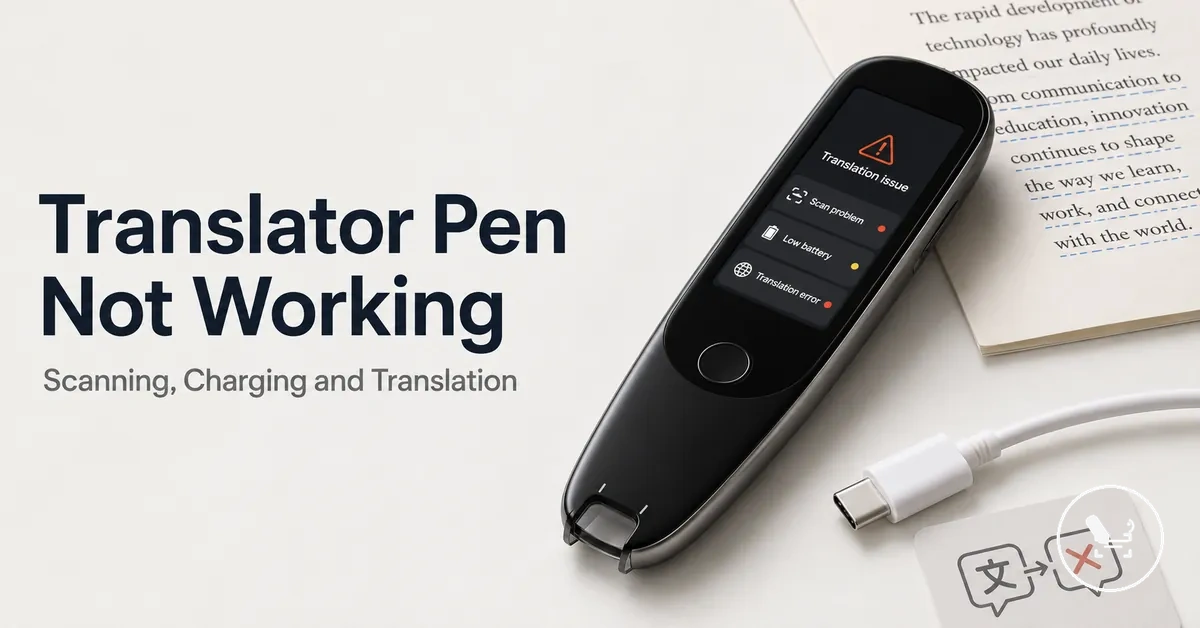
Translator Pen Troubleshooting for Scanning, Translation, Charging, and Connection Problems
When a translator pen is not working, the issue is often related to scanning, OCR recognition, translation output, charging, battery state, Wi-Fi, offline mode, reset behavior, or firmware conditions. These failure areas can overlap, but they should not be treated as the same cause, and troubleshooting should stay conditional based on symptoms.
Most cases of a translator pen not working come from three main groups: scanning and OCR recognition issues, power or charging instability, or translation output and connection problems. Each group behaves differently depending on how the device responds during use. Before applying any fixes, it is important to first identify the visible symptom and match it to the likely cause. translator pen guide
Model differences, firmware versions, installed language packs, battery condition, and network setup can all change how these issues appear. A reset or firmware adjustment may affect performance, but only after confirming basic scanning, charging, and connection behavior. Safe diagnosis should come before any deeper configuration changes.
If scanning, translation output, charging response, or Wi-Fi connectivity continues to fail after basic checks and reset attempts, the issue may indicate a deeper hardware or persistent firmware problem. In such cases, repair evaluation or replacement consideration may become relevant depending on the device condition.
Common Translator Pen Failure Symptoms
When translator pen failure symptoms appear, they usually signal different issues in scan response, OCR recognition, translation output, charging response, battery indicator, Wi-Fi status, offline mode, reset behavior, or firmware conditions. These symptoms help guide troubleshooting by showing what is affected rather than directly identifying the cause.
These failure symptoms can be grouped based on how the translator pen behaves during use, especially whether the issue appears during scanning, during translation output, or during power and connection activity. The visible device response should always be used as the first step in narrowing the likely area before any reset or deeper troubleshooting attempt.
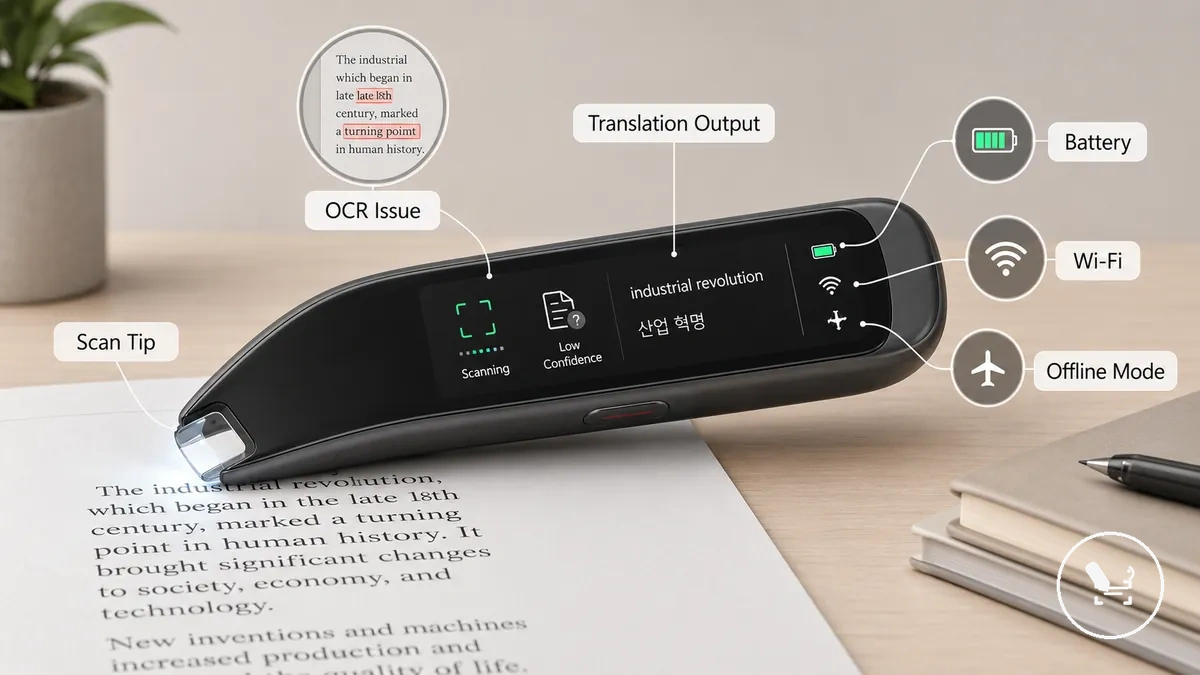
In some cases, failure symptoms can overlap, especially when low battery, unstable Wi-Fi status, or incomplete offline mode language packs affect both scanning and translation output at the same time. This overlap should be treated as a signal to compare multiple diagnostic paths rather than assuming a single fault.
Common translator pen failure symptoms include:
- Scan tip no response during printed text scanning, suggesting a scan response or OCR recognition issue
- Partial or distorted translation output, often linked to language pack limits or unstable translation mode behavior
- No charging response or unstable power signal, usually related to charging cable, port, or battery condition
- Battery indicator not updating or dropping unexpectedly, indicating possible battery or power calibration issues
- Wi-Fi status not connecting or dropping, suggesting a connection issue affecting online translation output
- Offline mode messages appearing with limited functionality, indicating missing or incomplete offline language packs
- Unexpected reset behavior or restart loops, which may relate to firmware stability or saved settings conflicts
The Pen Does Not Scan Text
When a translator pen does not scan text, it is not automatically a hardware fault. This usually relates to scan tip alignment, scan mode selection, or OCR input conditions that affect recognition. The issue should be checked through physical scanning conditions first before assuming internal damage.
A scanning issue like this is often connected to how the scan tip interacts with printed text, including scan angle, scan speed, lighting, page surface, and selected scan mode. If OCR does not receive stable input, the translator pen may appear unresponsive or fail to capture text correctly. The next step is to verify whether the scanning conditions are consistent and properly aligned with normal use.
Before moving into deeper diagnosis, the scanning setup should be observed in a controlled way to separate contact issues from recognition issues.
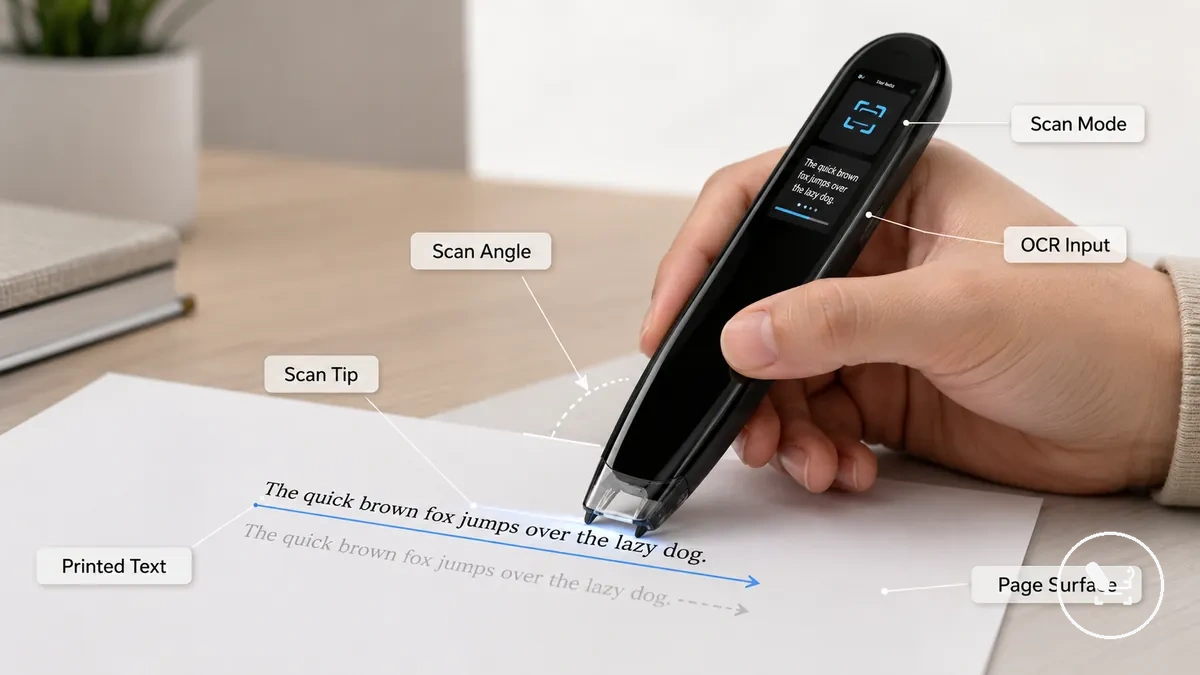
Start by checking the most common failure conditions that affect scanning response and OCR capture.
- Scan tip contact: confirm the scan tip properly touches printed text during scanning
- Printed text condition: check clarity, font quality, and spacing affecting OCR input
- Scan motion: verify scan speed is steady and not too fast or inconsistent
- Page surface: ensure the surface is flat and stable for accurate scan alignment
- Scan mode: confirm the correct scan mode is selected for OCR recognition output
The Pen Scans but Does Not Translate
When a translator pen scans but does not translate, the OCR capture is working while the translation output is failing. This means scanning and translating are separate stages, and the issue often depends on source language, target language, translation engine, or connection conditions.
After successful OCR capture, the problem usually shifts to how the captured text is processed by the translation engine. This can be influenced by dictionary mode, offline pack availability, or Wi-Fi status, which determines whether online translation can complete or fall back to limited output. The next step is to verify these translation conditions after confirming that text recognition is working correctly.
| Scan Result | Translation Result |
|---|---|
| OCR capture successful | No translation output |
| Text recognized correctly | Wrong or missing language output |
Check the key conditions that separate scanning success from translation failure:
- OCR capture: confirm text is correctly recognized before translation
- Source language: ensure correct input language selection
- Target language: verify output language setting matches need
- Translation engine: check if translation mode is active
- Dictionary mode: confirm it is not limiting translation output
- Offline pack: verify required language pack is installed
- Wi-Fi: ensure stable connection for online translation
The Pen Does Not Charge or Power On
When a translator pen does not charge, it is different from when it does not power on. Charging failure and startup failure are related but not identical symptoms, and they should be checked through charging cable, adapter, charging port, battery indicator, and screen response before assuming internal battery issues.
Charging and power-on problems should be traced from external power input toward device response. A does not charge condition may still allow partial battery activity, while a no power on situation may show delayed startup or no screen response even after charging. Start by verifying cable, adapter, and port conditions before considering deeper battery depletion or internal fault.
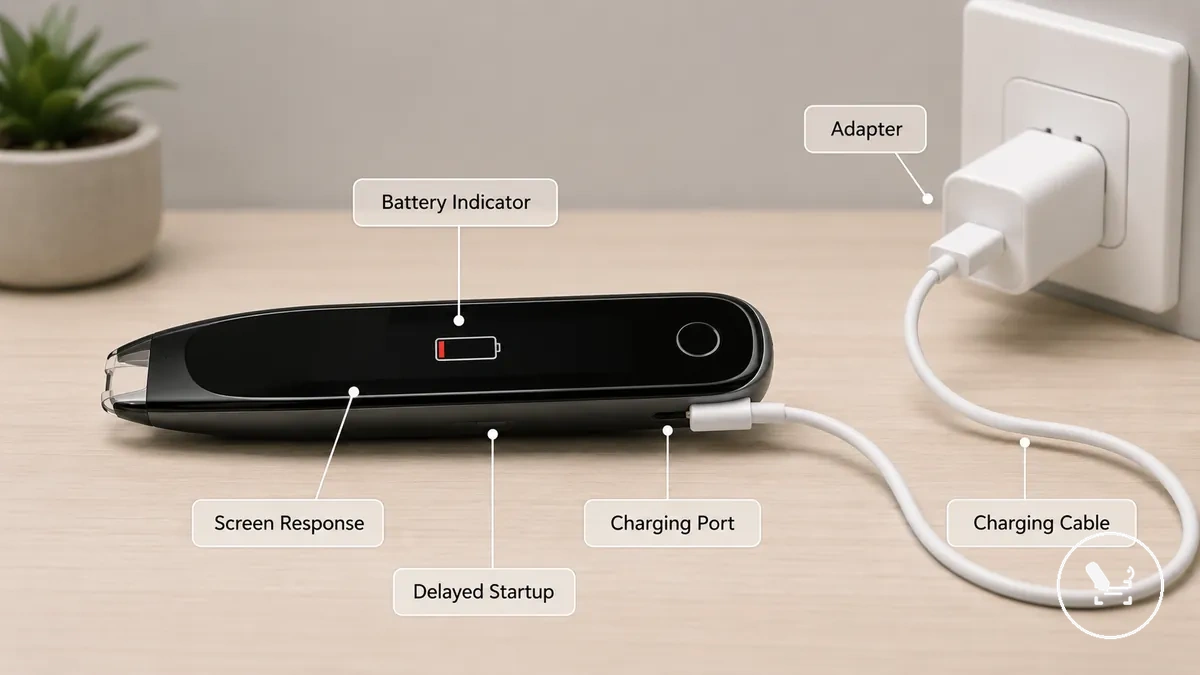
Check the main components in order to isolate the issue:
- Charging cable: confirm stable fit and consistent power transfer
- Adapter: check output stability and correct connection behavior
- Charging port: inspect for debris or loose contact affecting charging
- Battery indicator: observe whether charging or power level response appears
- Screen response: check for delayed startup or no power-on reaction
The Pen Shows Wi-Fi or Offline Mode Errors
A Wi-Fi error or offline mode issue can affect online translation, activation, firmware update access, or language pack loading while still allowing limited scanning in some cases. These connection issues do not always stop all functions, so the first step is to identify which feature is affected.
Wi-Fi error, hotspot issues, offline mode restrictions, activation limits, and firmware update requirements can each influence online translation and language pack behavior differently. Offline mode may still support certain features when language packs are installed, but connection-dependent functions like online translation or updates may be restricted depending on the model and settings.
Check the main connection conditions that affect feature access:
- Wi-Fi error: network name, password entry, or connection failure affecting online translation
- Hotspot: captive login pages or unstable shared connections blocking access
- Offline mode / language pack: missing or incomplete language pack limiting translation features
- Activation: device activation status restricting feature availability
- Firmware update: pending update requirement affecting connection stability and online translation
Basic Checks Before Resetting a Translator Pen
Reset should follow basic checks before being used. This prevents unnecessary changes to device settings, which may affect saved configuration and require setup again depending on the model.
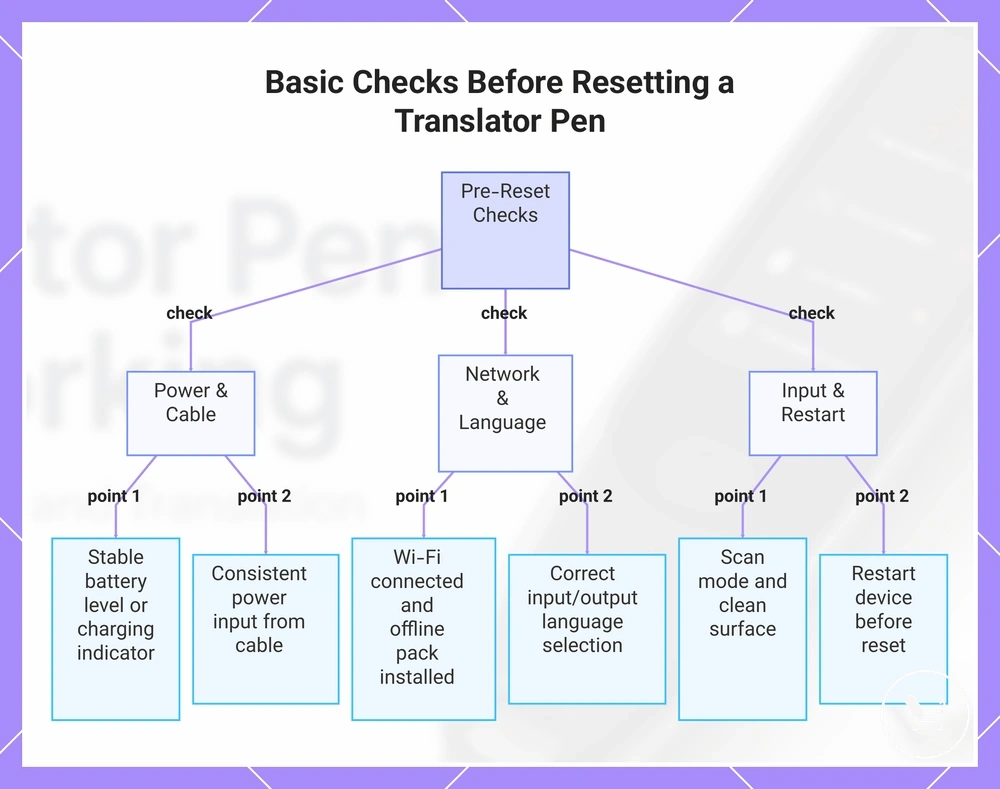
Basic checks should confirm power, mode, connection, and input conditions before using reset actions. These low-risk checks help identify whether the issue is caused by a simple condition rather than system-level settings. Stop the process if any single condition explains the issue before proceeding to reset.
Check the following basic conditions before using reset:
- Device charge: stable battery level or charging indicator shows expected power response
- Cable connection: consistent power input indicates proper charging response
- Language selection: correct input/output setup reflects expected translation result
- Wi-Fi state: connection status enables online translation access when required
- Offline pack: installed language pack supports offline mode translation function
- Scan mode: selected mode produces correct translation output behavior
- Clean scan surface: clear printed text produces stable scanning response
- Restart attempt: device restart restores normal function before reset is considered
This chart shows the essential conditions to verify before performing a reset on a translator pen to avoid unnecessary settings changes.
Scanning and OCR Problems
Scanning problems in a translator pen arise from the interaction between scan hardware and OCR processing, where scan tip contact, line alignment, page surface, text density, and scan mode jointly influence the recognition result.
When scanning problems occur, the scan hardware and printed text relationship becomes unstable, causing OCR input to vary. Issues in printed characters, line alignment, or page surface conditions can lead to differences in how the OCR interprets the text. For example, a physical scan interruption from poor scan tip contact may produce missing segments, while unstable line alignment may still capture text but distort the recognition result.
OCR output also depends on scan mode and how text density is processed across single-line or multi-line layouts. If scan mode does not match the printed text structure, the recognition result may shift even when scanning motion is consistent. These variations are typically driven by local scan setup factors such as scan angle, text layout, and OCR interpretation behavior.
| Condition | Primary Factor | Recognition Result |
|---|---|---|
| Weak scan tip contact | Scan hardware | Physical scan interruption or missing text capture |
| Irregular line alignment | Printed text layout | Shifted or distorted OCR result |
| High text density mismatch | OCR processing | Partial or merged recognition result |
| Incorrect scan mode | Scan mode vs text structure | Inaccurate or incomplete recognition result |
Scan Angle, Text Surface, and Recognition Conditions
Scan angle, text surface, and recognition conditions affect how scan hardware interacts with printed text during capture, influencing how OCR processes the incoming input. When scan angle or pressure is unstable, recognition conditions may shift because the scan tip does not maintain consistent contact with the page surface. These variables together determine how reliably text is captured under different scanning situations.
Outcomes vary depending on text surface type, font size, and text spacing, which can influence how OCR interprets visual input. For example, glare on a glossy page surface or uneven contact on curved pages may interfere with recognition conditions even if scan speed appears consistent. Printed text and handwritten text can also produce different recognition results under the same scan setup, depending on local sensitivity.
Check the following physical conditions that influence recognition results:
- Scan angle: misalignment may reduce clean capture and affect recognition consistency
- Text surface: glossy or uneven surfaces may interfere with OCR input clarity
- Pressure: unstable contact can disrupt scan hardware input during capture
- Scan speed: inconsistent motion may affect line alignment and text flow
- Glare: reflective surfaces may reduce OCR readability of printed text
- Curved pages: uneven surfaces may weaken recognition consistency across lines
- Font size: small or dense text may reduce recognition clarity in OCR results
- Text spacing: tight spacing may affect separation of recognized characters
Scan Mode and Multi-Line Scanning Settings
Scan mode affects how text layout is interpreted during capture, and a mismatch between scan mode and text layout may result in missing or inconsistent display output. When this happens, scan mode and multi-line scanning behavior should be checked in relation to line detection and reading direction, as these variables influence how text is processed.
Text layout and display output depend on how scan mode handles line detection, punctuation, and reading direction during processing. If multi-line scanning is enabled or disabled in a way that does not match the structure of the printed content, recognition conditions may change and affect the final result. Users can typically review available scanning settings in the device menu to confirm how scan mode aligns with text layout requirements.
- Scan mode mismatch: may affect how text layout is processed and result in incomplete display output
- Multi-line scanning: when unsupported or disabled, paragraph structure may not be detected correctly
- Line detection: variation in detection behavior can influence how continuous text is segmented
- Reading direction: incorrect alignment may affect recognition conditions and output order
- Punctuation handling: may alter how final text is structured in display output
:contentReference[oaicite:0]{index=0}
Translation Output and Language Mode Problems
Translation output issues occur when OCR text is captured correctly but fails during processing due to differences in language mode, source language, or target language configuration. In these cases, translation output may appear missing, incorrect, delayed, or shifted into the wrong language depending on how the translation engine interprets the OCR text and selected language mode.
The translation result depends on alignment between source language, target language, dictionary mode, and the translation engine, which together determine how OCR text is processed into a final translation output. If dictionary mode is active or the language pair is incorrectly set, the translation engine may return incomplete or mismatched results. A setting-based check of language mode and translation configuration is usually required to isolate the cause.
Offline language pack availability and online connection status also affect translation output behavior, especially when switching between offline and online processing. Missing offline language packs or unstable online connection can lead to no translation output or delayed response even when OCR text is correctly captured. In such cases, functionality depends on supported language resources and connection stability rather than scanning accuracy.
| Condition | Language Mode / Setting | Typical Translation Output |
|---|---|---|
| Wrong language pair | Source language / Target language mismatch | Wrong language output or irrelevant translation |
| Dictionary mode active | Dictionary mode enabled | Partial or limited translation output |
| Offline pack missing | Offline language pack unavailable | No translation output in offline mode |
| Weak or unstable connection | Online connection issues | Delayed or failed translation output |
:contentReference[oaicite:0]{index=0}
Language Pair and Translation Engine Settings
Wrong language pair settings in the translation engine can create incorrect translation output even when the OCR text is readable. When the source language and target language are not aligned with the language pair, the translation engine may produce wrong language output or inconsistent translation results. A quick settings check is needed to confirm correct configuration.
The language pair in the translation engine depends on how source language and target language are selected or detected from OCR text. Automatic detection may interpret scanned text differently depending on context, while dictionary mode, voice translation mode, and text translation mode can each affect how the translation output is processed and displayed. These settings should be reviewed to ensure the selected language mode matches the intended translation result.
- Source language: check selection or automatic detection, as mismatch can affect translation output
- Target language: confirm correct output language in the language pair to avoid wrong language results
- Automatic detection: may interpret scanned text differently depending on context and input clarity
- Dictionary mode: may limit full translation output and affect result structure
- Voice translation mode: can change processing behavior compared to text translation mode
- Text translation mode: ensure it matches OCR-based input for consistent translation output
Offline Language Packs and Supported Language Limits
Offline translation depends on installed offline language packs and supported language pairs. When the installed pack or supported language limits do not match the selected source language and target language, offline translation may not produce results even if OCR text is readable. A quick check of installed packs and language pair settings helps confirm offline availability.
Offline language packs are also affected by storage availability, update status, model limitations, and online-only features that may still require a Wi-Fi connection in some cases even when basic offline translation is available. These factors can restrict or modify translation output depending on device configuration and supported language limits.
Check the following compatibility conditions:
- Installed pack: missing or incomplete offline language packs can prevent offline translation output
- Storage availability: limited storage may block installation or updating of language packs
- Supported language limits: unsupported source language or target language may restrict offline translation
- Update status: outdated packs may cause incomplete or inconsistent translation output
- Online-only features: some functions may require Wi-Fi even when offline translation is enabled
:contentReference[oaicite:0]{index=0}
Charging, Cable, and Power Problems
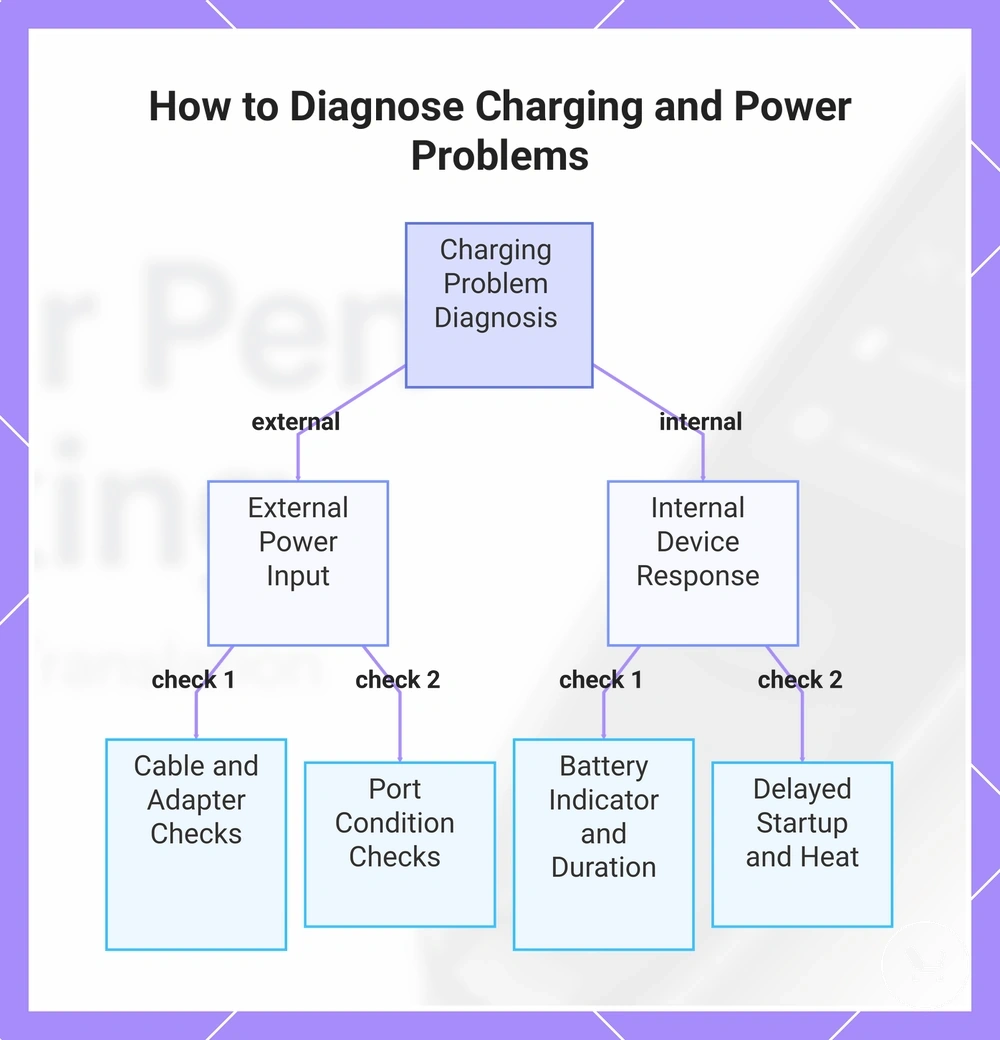
Charging problems and power problems should be separated by component to identify whether the issue comes from external power input or internal device response. Charging and power problems are often linked, but each component should be tested individually to avoid misdiagnosis. The outside-in check sequence starts from the cable and moves through the adapter output, USB port, charging port, and device state.
Cable condition, adapter output, USB port, and charging port condition determine whether stable charging flow reaches the device. Cable fit and cable type may influence stable connection, while adapter output and USB port stability affect consistent power delivery. For structured maintenance context, see battery and charging checks. These checks help distinguish external charging faults from internal response limits and clarify visible charging behavior.
Battery indicator behavior, charging duration, delayed startup, and heat response help separate temporary charging delay from deeper power problems. A delayed startup may indicate slow power stabilization, while repeated no-response conditions or abnormal heat may indicate a condition where a service check becomes more appropriate depending on repeated test outcomes.
Check the following components in order to isolate the fault:
- Cable: test stability and fit; unstable response may indicate external charging interruption
- Adapter output: verify consistent power delivery; irregular output may reduce charging stability
- USB port: check source stability; weak output may affect charging performance
- Charging port: inspect for debris or poor contact; may block or reduce charging response
- Battery indicator: observe charging signal; weak or no response may indicate internal limitation
- Charging duration: monitor response over time; no change may suggest deeper issue
- Device state: check delayed startup or no power response; persistent failure may indicate service check need
:contentReference[oaicite:0]{index=0}
This chart shows the outside-in diagnostic sequence for separating external power input issues from internal device response problems.
Cable, Charger, and Charging Port Checks
Cable, charger, and charging port issues should be checked before assuming internal device failure, as charging problems often come from external components rather than the device itself. The diagnostic flow follows a simple outside-in approach that starts with the charging cable, then the charger, and finally the charging port to isolate the cause of power problems.
Charging cable, charger, adapter, USB port, and charging port should be inspected for stable connection and proper port fit, since poor contact or visible debris can interrupt charging flow. Alternate power source testing can help confirm whether the issue is related to the external setup or the device response, while port cleanliness supports stable connector behavior during use. Accessories showing damage or unstable connection should be treated cautiously to avoid further charging interruption.
Check the following components in order:
- Charging cable: inspect for wear or looseness, as unstable cable condition may reduce or interrupt charging response
- Charger: test connection stability, since irregular charger behavior may prevent consistent power delivery
- Adapter: verify stable output through the USB port, as weak input can reduce charging efficiency
- USB port: check the power source connection, as poor port fit may limit charging response
- Charging port: inspect for visible debris or blockage, as contamination can prevent proper connector contact
Battery Response After Charging
Battery response after charging helps narrow the next diagnostic check by showing how the device behaves after charging is completed. When charging ends, the battery response may vary based on battery level, charge duration, screen response, and startup behavior, which together form the main observable signals for diagnosis.
Different battery response patterns after charging indicate different next steps depending on screen response, startup behavior, shutdown timing, heat, and overall battery condition signals. These outcomes should be treated as indicators rather than final proof, and in unclear or repeated abnormal cases, service confirmation may be required.
- No indicator: no visible battery response after charging, which may suggest unstable battery level signal or interrupted charging feedback
- Slow indicator: delayed screen response or slow battery level update, which may indicate extended charge duration or weak response signal
- Brief startup: device powers on briefly then stops, which may suggest unstable startup behavior or inconsistent power response
- Rapid shutdown: device turns off shortly after starting, which may indicate unstable shutdown timing or weak power condition under load
- Normal charge but no operation: charging response appears but no functional startup behavior, which may require service confirmation if it repeats consistently
:contentReference[oaicite:0]{index=0}
Wi-Fi, Hotspot, and Offline Connection Problems
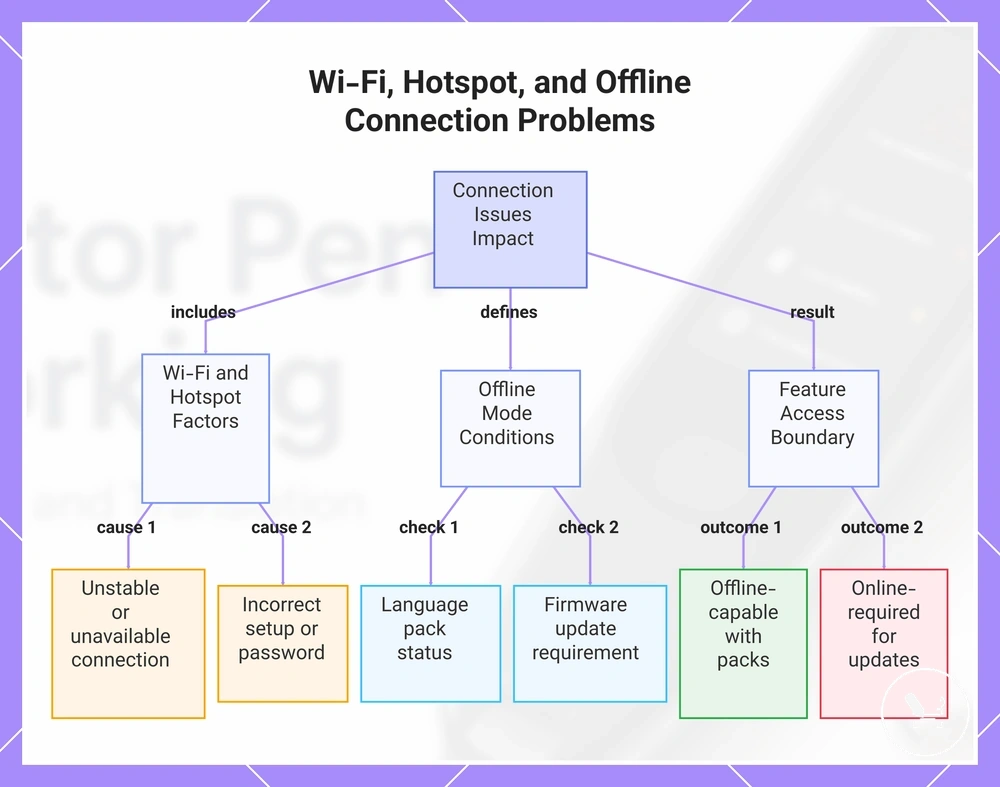
Wi-Fi, hotspot, and offline connection problems affect translation, firmware updates, activation, and language pack access in different ways depending on the feature being used. These connection issues should be separated from scanning and charging problems so that diagnosis remains feature-specific rather than treating every issue as a network fault.
Wi-Fi network conditions, hotspot setup, password accuracy, router distance, and captive login behavior can all influence translation access, activation, and online feature response. Wi-Fi issues may block internet access for translation or updates, while hotspot or password mismatches can prevent proper activation or synchronization. A structured check of these conditions helps isolate connection-related limitations from device functionality issues.
Offline mode, language pack status, and firmware update requirements determine which features work without internet access and which require connectivity. In this context, offline translation problems may appear when language resources are missing or updates are incomplete. Offline mode may still support basic translation when packs are installed, while firmware update and activation functions typically depend on internet access, creating a clear boundary between offline-capable and online-required features.
- Wi-Fi: unstable or unavailable connection may block translation access and online feature response
- Hotspot: incorrect setup or restricted access can prevent activation and internet-based functions
- Password: incorrect entry may stop network connection and interrupt synchronization
- Router distance: weak signal may reduce stability of translation and update access
- Captive login: incomplete login pages may block full internet connectivity for features
- Firmware update: may require internet access and affect feature availability when incomplete
- Language pack status: missing or outdated packs may limit offline translation capability while online features remain unaffected
:contentReference[oaicite:0]{index=0}
This chart shows how Wi-Fi, hotspot, and offline connection issues affect translation, updates, and activation, helping to isolate network faults from device problems.
Reset, Update, and Setup Recovery
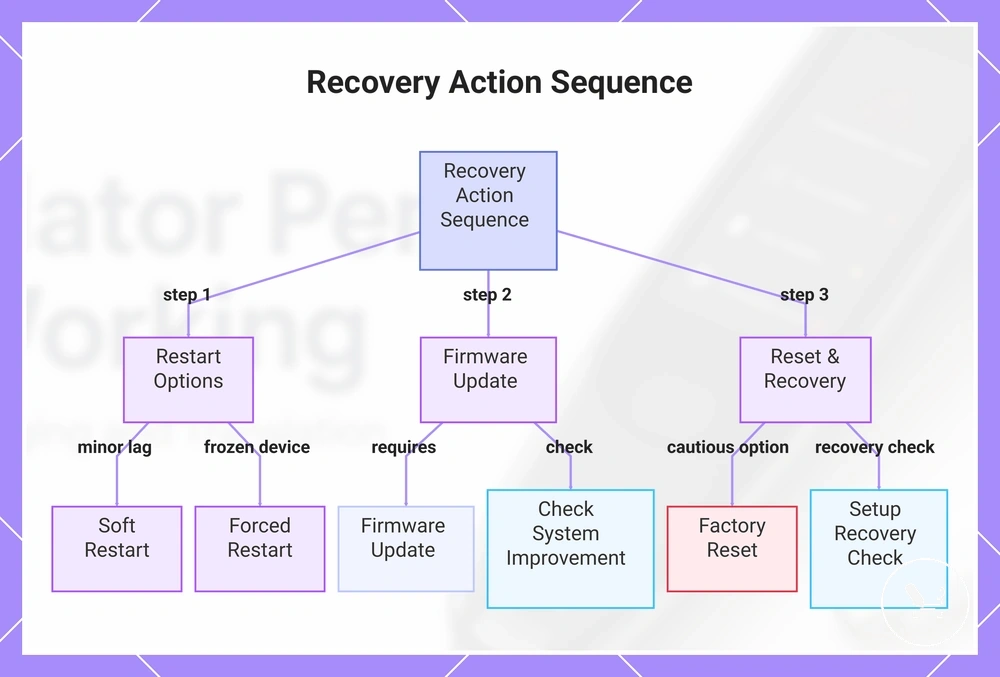
Reset, update, and setup recovery should only be used after simpler checks confirm that basic issues are not responsible, since these recovery actions can change system settings or require reconfiguration. These steps follow a controlled sequence of soft restart, forced restart, firmware update, factory reset, language setup, Wi-Fi setup, activation, and restored settings depending on the condition and response of the device.
Soft restart and forced restart are used first to address temporary frozen screen or response issues, while firmware update may help resolve system-level instability when internet access is available. These actions should be completed before considering reset options, as update and restart attempts can often restore normal behavior without altering saved settings.
Factory reset and setup recovery are later-stage actions because they may remove saved settings and require full reconfiguration of language setup, Wi-Fi setup, activation, and restored settings. In such cases, translator pen setup may be required again depending on the device condition and recovery outcome. Factory reset should be treated as a cautious option rather than an initial step in troubleshooting.
- Soft restart: use when minor lag or delayed response occurs; check whether screen response returns to normal after restart.
- Forced restart: use when the device is frozen or unresponsive; verify whether startup behavior recovers after reboot.
- Firmware update: use when an update is available and connectivity is stable; check whether system features or activation improve after update.
- Setup recovery check: use when previous steps do not restore function; verify whether system access can be recovered without reset.
- Factory reset: use only when issues persist; confirm whether device returns to initial setup state with restored settings.
:contentReference[oaicite:0]{index=0}
This chart shows the recommended sequence of recovery actions, starting with restart options, then firmware update, and finally reset or setup recovery.
Soft Restart and Forced Restart Checks
Soft restart and forced restart checks are used to address temporary software faults such as a frozen screen or stalled translation during operation. These restart actions help refresh device response without changing core settings. Their effectiveness can vary depending on the model and device condition, so results should be interpreted as model-dependent.
After performing a soft restart or forced restart, the main focus is whether the frozen screen clears, stalled translation resumes, and whether overall device response returns to normal. Power button response, charging state, restart delay, and returned function help indicate whether the issue is a temporary software fault or a persistent condition. These signals help separate normal recovery behavior from cases that may require further escalation if no improvement is observed.
- Soft restart: apply a soft restart when minor lag or temporary software fault is observed; check whether frozen screen behavior clears and device response returns to normal.
- Forced restart: use a forced restart when the device shows a frozen screen or stalled translation; observe power button response and check whether the system restarts successfully.
- Observation phase: wait after restart and monitor restart delay, charging state, and returned function to confirm whether stable operation is restored or further action is needed.
:contentReference[oaicite:0]{index=0}
Factory Reset and Activation Recovery
Factory reset and activation recovery are later-stage actions used for persistent configuration or software problems that cannot be resolved through earlier troubleshooting steps. These actions may remove saved settings, language packs, or account configuration depending on the device model. They should be applied with caution as a final recovery option rather than an initial fix.
Activation recovery is used to restore system access after a factory reset or configuration loss by re-establishing activation status, update state, and account configuration. After recovery, restored operation depends on successful verification of system access, saved languages, Wi-Fi credentials, and overall setup completion. In cases where system issues persist, only software-related conditions should be considered for this process, not hardware-related faults.
- Reset menu check: use when persistent configuration or software issues remain; verify whether factory reset options are available and appropriate for the current condition.
- Factory reset action: apply only when necessary; observe whether saved settings, saved languages, Wi-Fi credentials, and account configuration are removed after execution.
- Activation recovery process: perform after reset when required; check whether activation status and account configuration are successfully restored.
- System verification: confirm update state and restored operation; verify whether normal setup behavior and functional access return after recovery.
:contentReference[oaicite:0]{index=0}
When Repair or Replacement Is More Likely Than a Fix
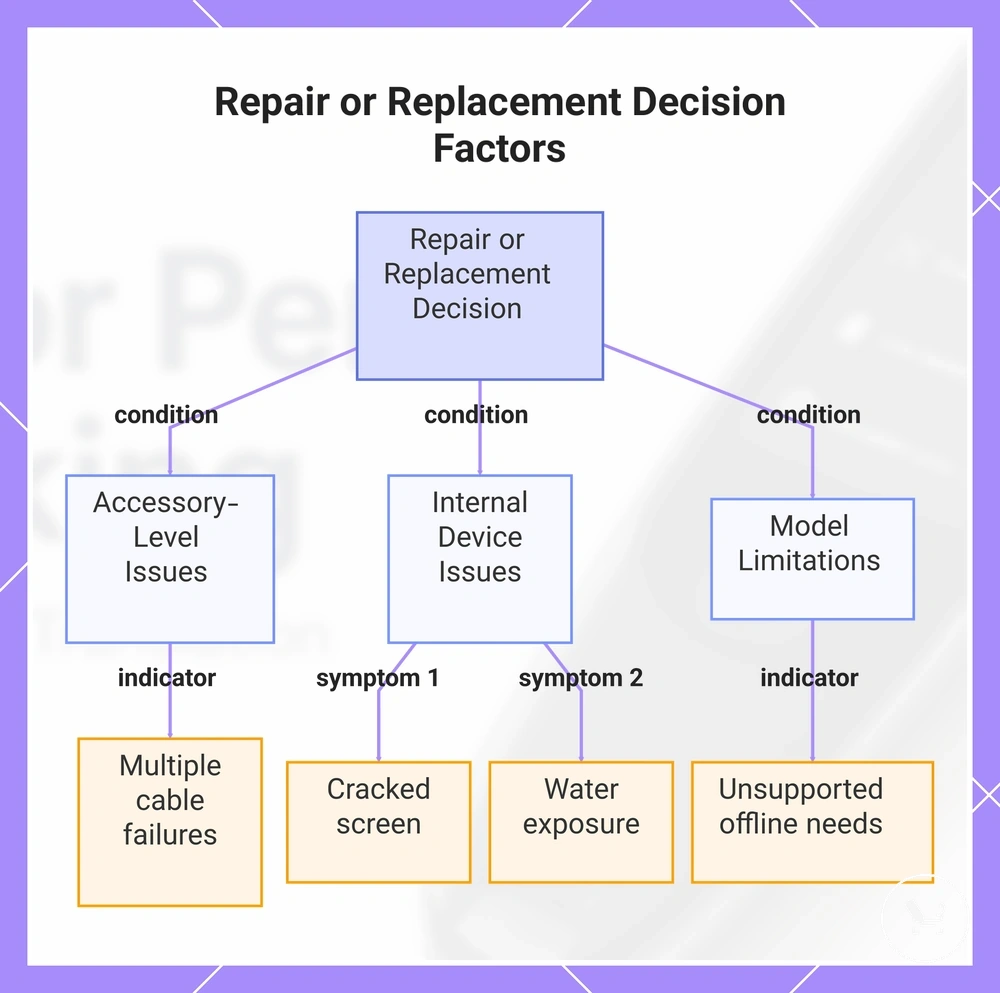
Repair or replacement becomes more likely when repeated checks fail to restore normal operation and the issue persists across multiple attempts. This indicates a shift from temporary troubleshooting to a persistent failure pattern that may require escalation. The decision should remain based on observed symptoms and failed recovery outcomes rather than isolated errors.
Accessory replacement and device service decisions depend on whether the issue remains external or continues after eliminating accessory-related variables. A failed cable test or unstable connection may suggest accessory replacement, while damaged scan tip, loose charging port, battery non-response, firmware failure, cracked screen, or water exposure more often point toward repair support at device level. The distinction is based on whether symptoms persist beyond external components or indicate internal instability.
When unsupported offline needs or repeated system instability continue despite checks, replacement considerations may become more relevant than continued troubleshooting loops. This applies when model limitations affect required language packs or when persistent failures suggest ongoing system constraints that cannot be resolved through basic fixes. In such cases, the next step should focus on structured service evaluation or broader replacement assessment depending on severity and recurrence.
Decision checklist:
- Failed cable test: when multiple cables still fail, accessory replacement is more likely as the next step.
- Loose charging port: when connections remain unstable across accessories, device service may be required to verify internal port condition.
- Damaged scan tip: when scan performance stays inconsistent, repair support may be needed depending on wear level.
- Battery non-response: when no stable power reaction appears, internal repair evaluation becomes more relevant.
- Firmware failure: when updates repeatedly fail or do not restore function, system-level repair or escalation may be needed.
- Cracked screen: when display damage affects usability, repair assessment is typically required due to functional limitation.
- Water exposure: when liquid contact is suspected, repair or recovery outcomes depend on internal condition after exposure.
- Unsupported offline needs: when required language or offline functions cannot be supported, replacement may be considered based on model limits.
This chart shows the three main symptom categories that determine whether a device issue requires accessory replacement, device service, or replacement consideration.