
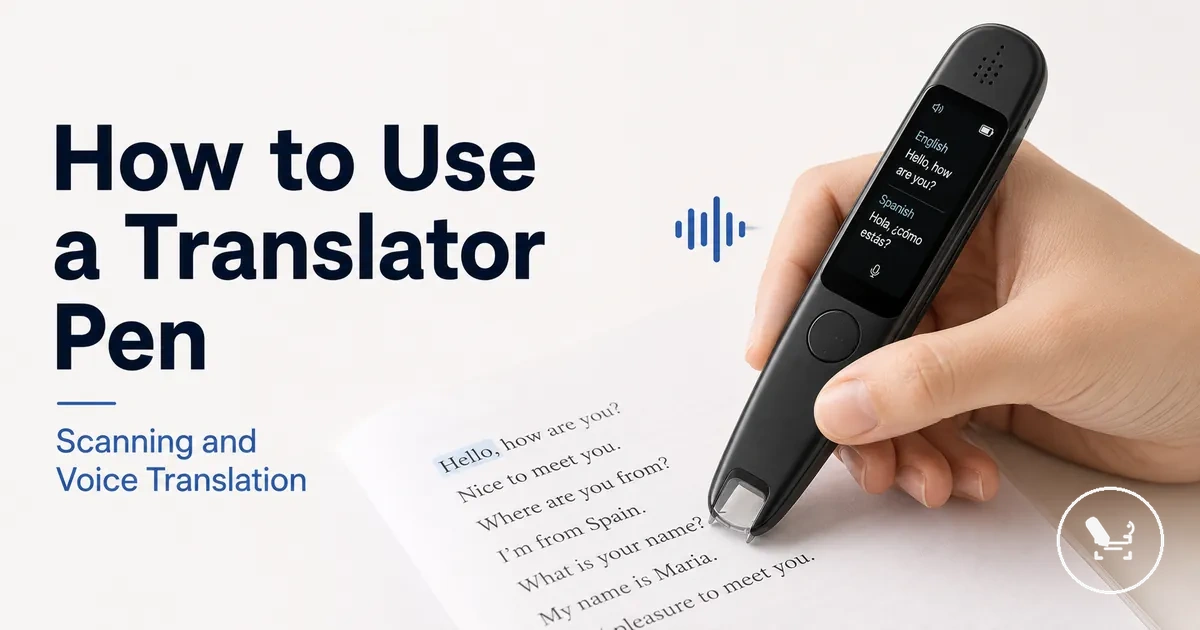
How to Use a Translator Pen
A translator pen is used by starting a scanning process that reads printed text in a selected source language and generates translated text on the screen, with optional text-to-speech output or voice translation depending on the mode and configuration.
This process applies across different usage contexts of a translator pen, including reading support and language interpretation, where scanning printed text is the core action that connects input to translated output. More context about device structure and functions is available in the translator pen guide, especially when reviewing how the screen displays recognized text and how the speaker outputs audio results.
Depending on the model setup, the behavior of scanning, voice translation, text-to-speech, and language switching may vary. Some translator pen configurations rely on Wi-Fi for online translation, while others can operate in offline mode using downloaded language packs. In both cases, source language and target language selection, along with clear printed text input, affects how the screen displays results and how the speaker delivers audio output.
User experience may also depend on practical conditions such as screen readability, speaker volume, and how consistently the scanning motion is applied during use.
Translator Pen Checks Before Use
Translator Pen Checks Before Use ensures the translator pen is ready for scanning printed text, voice translation, and text-to-speech output by confirming key conditions like battery charge, language direction, and active mode settings before starting any interaction.
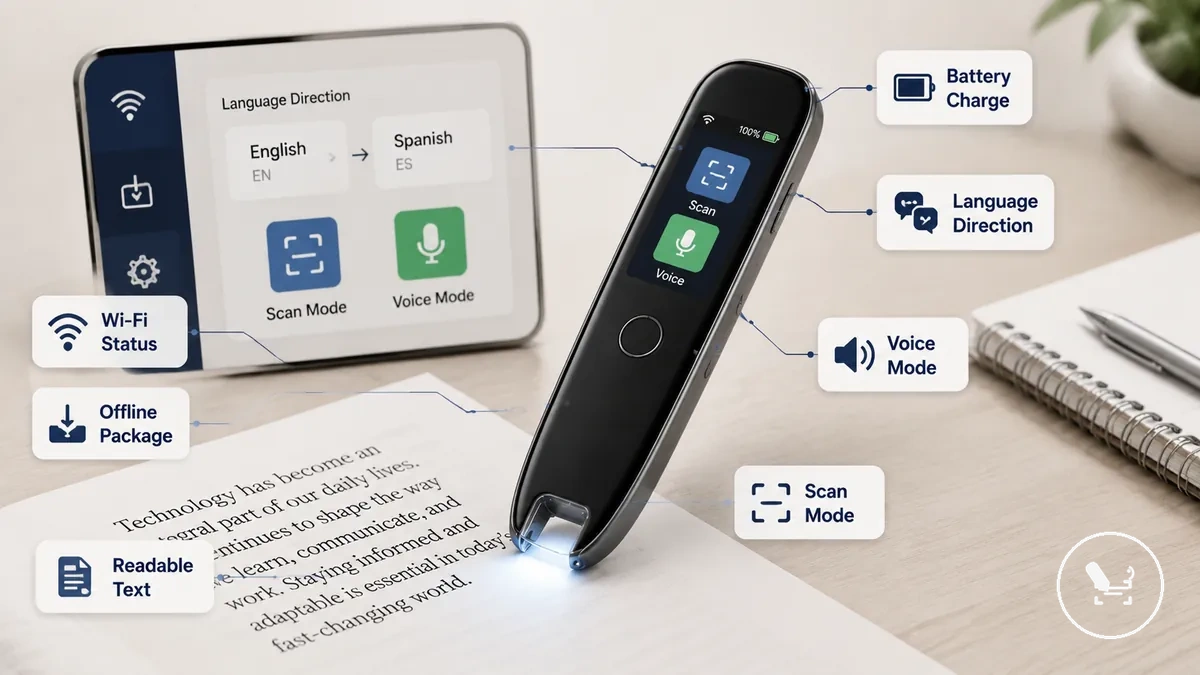
These readiness checks help confirm that scanning, voice translation, and text-to-speech functions can operate under stable conditions. Before using the translator pen, a quick verification of core settings reduces interruptions during printed text recognition and audio output.
translator pen setup typically prepares the device, while the following pre-use checks confirm it is ready for immediate scanning or speaking tasks:
- battery charge is sufficient for scanning and voice translation use
- language direction is correctly set between source language and target language
- scan mode is enabled for printed text recognition
- voice mode is active when spoken translation output is required
- Wi-Fi status is stable when online translation is needed
- offline package availability is confirmed for offline mode usage
- volume level is adjusted for speaker output clarity
- microphone access is enabled for voice translation input
- readable text conditions are suitable for accurate scanning
Language, Wi-Fi, and Offline Mode Readiness
Language, Wi-Fi, and Offline Mode Readiness depends on how the translator pen is configured for source language and target language pairing, as well as whether online translation or offline mode is active under model limits and voice availability conditions. In many cases, language performance, voice availability, and feature access vary based on connection state and installed language support rather than a fixed universal setup.
This readiness check helps confirm whether translation will operate through Wi-Fi for online translation or rely on downloaded languages in offline mode before scanning or speaking begins. The visual below clarifies how source language, target language, and connection state relate to translation readiness.
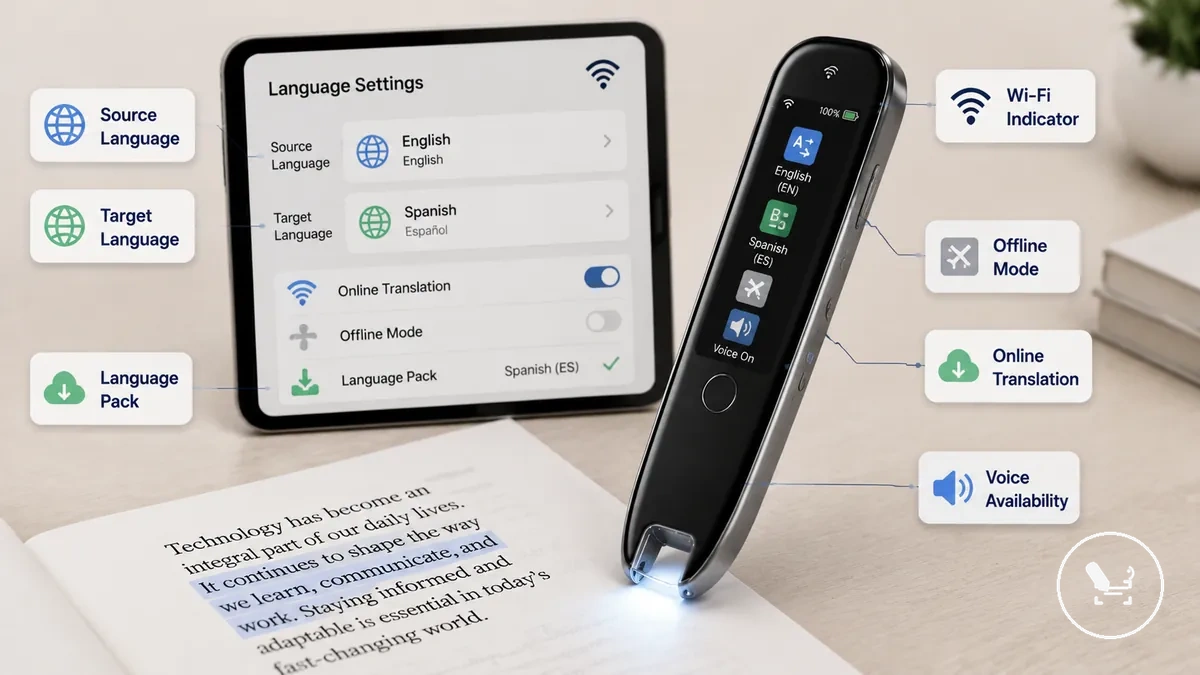 For deeper configuration context, see offline mode setup as a reference point for connection-based usage. Readiness can be evaluated through the following conditions:
- source language is correctly selected for input recognition
- target language is correctly selected for output translation
- Wi-Fi is active when using online translation features
- offline mode is enabled when using downloaded languages
- downloaded languages are available for offline processing
- voice availability is enabled for spoken translation output
- model limits may affect supported language pairs or functions
Printed Text, Lighting, and Surface Conditions
Printed text scanning accuracy depends on printed text clarity, lighting conditions, and surface stability, where font clarity, line spacing, paper flatness, small print, and handwriting affect how consistently a translator pen can interpret visible content.
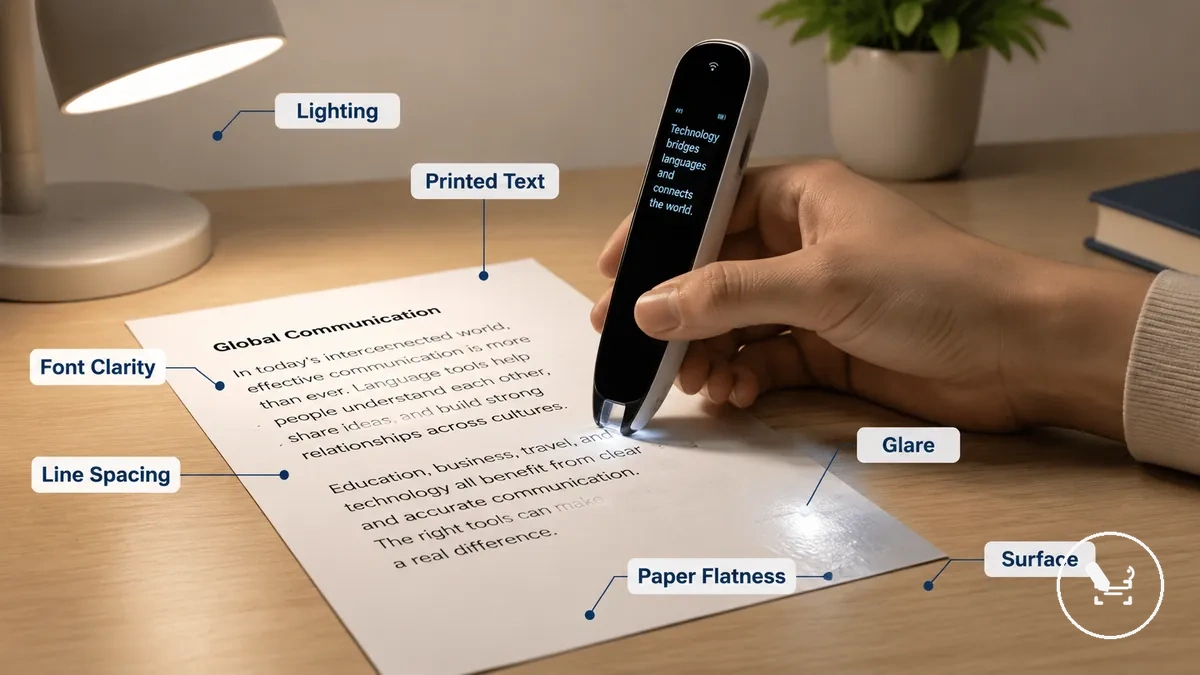
When glare, uneven lighting, or unstable surface angles are present, printed text readability can decrease because scan conditions become less stable across the page surface. These factors may affect how clearly characters are detected during scanning, especially when lighting or alignment changes.
These conditions can be evaluated before scanning to improve readability and reduce distortion risks. The checklist below outlines key printed text factors and their likely scan effects:
- font clarity → clearer text usually improves character recognition, unclear fonts may reduce readability
- line spacing → proper spacing helps separation, tight spacing may cause character merging
- paper flatness → flat pages support stable scanning, curved surfaces may distort alignment
- lighting → balanced lighting improves visibility, shadows may reduce text clarity
- glare → strong reflections may obscure printed text, matte surfaces usually reduce interference
- small print → reduced size may lower readability, slower scanning may be needed
- handwriting → neat handwriting may improve interpretation, irregular handwriting may reduce consistency
How to Scan Printed Text with a Translator Pen
Scanning printed text with a translator pen starts by activating scan mode and positioning the scan tip at the beginning of a printed text line. This process depends on correct line alignment, steady motion speed, and clear recognition of printed text to generate accurate recognized text and translated output on the device screen.
The visual below shows scan tip placement at the start of a text line, the direction of movement across printed text, and how line alignment supports stable capture during scanning.
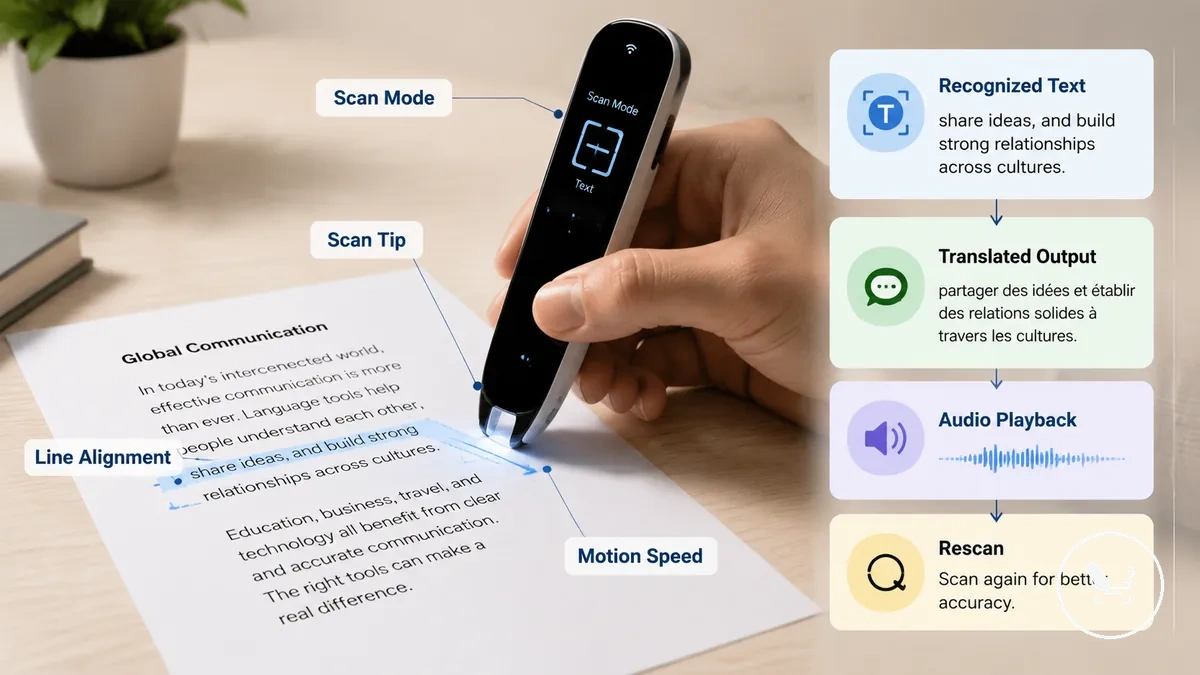
Follow these steps to perform a complete scan from input to output:
- Turn on scan mode and prepare the translator pen for text capture
- Place the scan tip at the beginning of the printed text line and align it with the text line
- Move the pen steadily across the printed text using consistent motion speed
- Wait for recognized text to appear on the screen as the scan progresses
- View the translated output generated from the scanned content
- Use audio playback if you need spoken translation of the result
- Perform a rescan if recognized text is incomplete or misaligned due to movement or positioning
If scan results are incomplete, the issue is often caused by unstable motion speed, poor line alignment, or scan tip deviation from the printed text line. Repositioning the scan tip and repeating the scan usually improves recognized text consistency without changing device settings.
This scan translation workflow connects printed text capture with recognized text processing and translated output generation, forming a continuous process from scanning to audio playback and correction when needed.
Placing the Scanner Tip on the Text Line
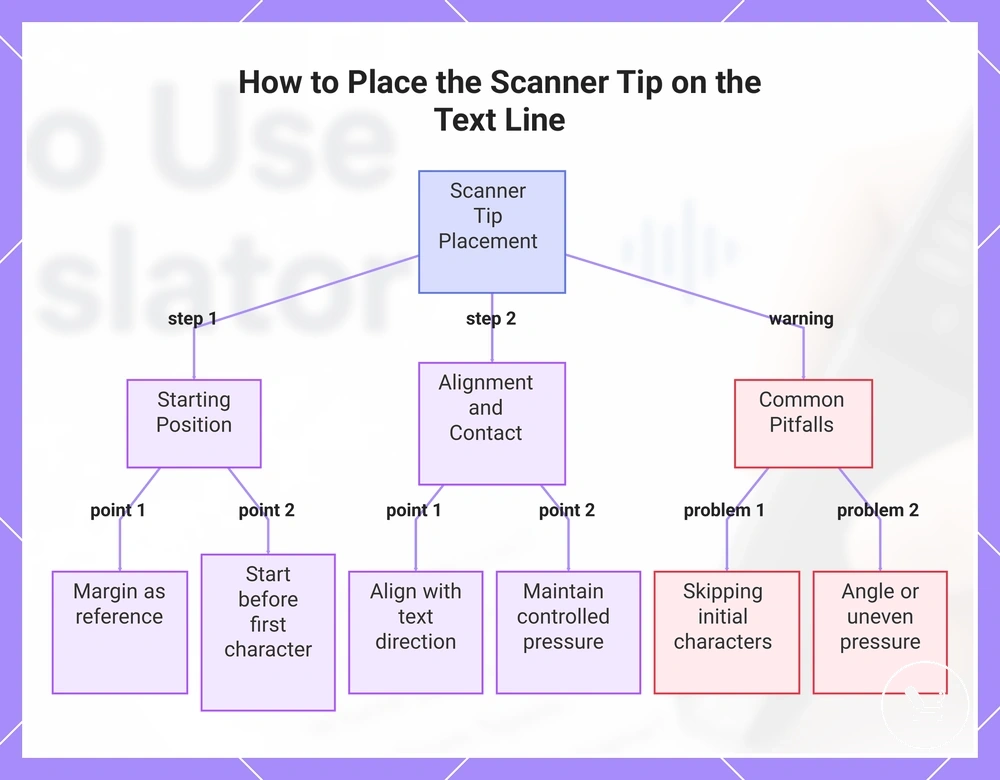
Placing the scanner tip on the text line depends on setting a precise starting position at the margin and aligning the scanner tip with the text direction so the scan begins on the correct path. Proper line alignment and controlled contact pressure help the scanner tip stay stable on the text line, while avoiding any angle ensures the scan follows the printed line instead of drifting off it.
A clean start is achieved by placing the scanner tip just before the first character rather than directly on top of it, while ensuring the margin is used as a reference for positioning. Starting too far into the line can skip initial characters, while incorrect angle or uneven contact pressure can reduce scan stability and affect recognition consistency during movement.
This chart shows the correct steps and common mistakes for placing the scanner tip on a text line to ensure accurate scanning.
Moving the Pen Across the Text Smoothly
Moving the Pen Across the Text Smoothly depends on maintaining a steady scan where movement speed stays consistent and the scanner tip follows a straight line along the text line. A controlled steady scan reduces skipped words, while uneven pauses or inconsistent motion can interrupt recognition and trigger repeated scans depending on model tolerance during capture.
Keep the scanner tip aligned with the text direction and maintain full-line coverage without drifting off the line. Short pauses may help when repositioning, but frequent stopping or irregular movement speed can reduce continuity, leading to skipped words or incomplete capture that may require a rescan to restore accuracy.
Checking the Translation on Screen
Checking the Translation on Screen involves reviewing what appears on the screen after scanning, including the recognized text and translated text, to confirm whether any missing characters or misread segments occurred during capture. This review step also depends on correct language direction settings, since mismatched direction can affect how the translation is displayed.
During review, speaker output can be used to listen to the translated result, helping identify differences between displayed text and pronunciation. If inconsistencies appear between recognized text and translated text, or if missing characters are visible, a rescan is often required to improve clarity and alignment of the output.
- Check recognized text against the original scan input
- Review translated text for missing characters or incomplete segments
- Confirm language direction is set correctly on the screen
- Use speaker output to verify pronunciation or audio playback
- Perform a rescan when inconsistencies or gaps appear
How to Use Voice Translation on a Translator Pen
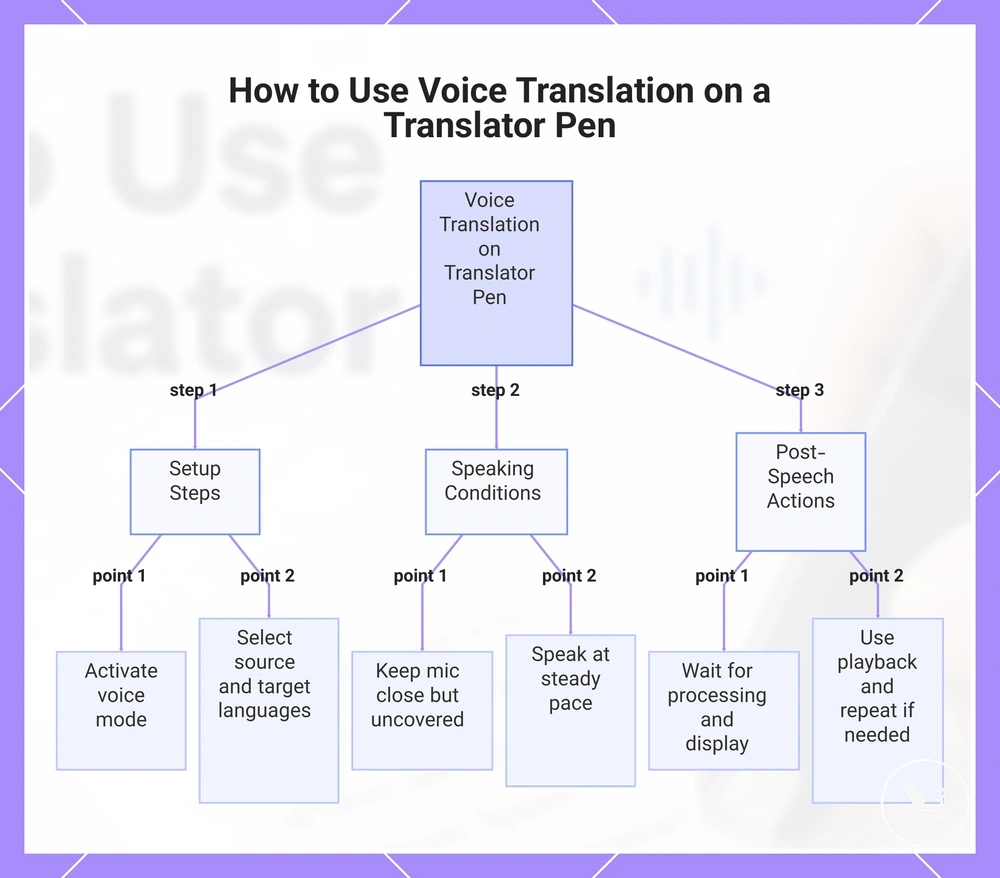
How to Use Voice Translation on a Translator Pen involves activating voice mode and using the microphone to capture a spoken phrase in the source language, then converting it into translated audio output on the speaker. The process depends on clear input from the microphone and correct pairing of source language and target language to generate usable translated audio.
To ensure smoother recognition, keep the microphone close enough to capture speech clearly, but avoid covering it during speaking. Background noise can interfere with detection of the spoken phrase, which may affect how the translated audio is generated or played through speaker playback. Example: “Where is the station?”
- Activate voice mode on the translator pen before speaking.
- Select the correct source language and target language on the screen.
- Hold the microphone at a short distance from your mouth for clear capture of the spoken phrase.
- Speak at a steady pace to help reduce recognition issues caused by rapid speech or background noise.
- Wait for the device to process and display the translated audio on the screen.
- Use speaker playback to hear the translated output and repeat the process if rescan or re-record is needed.
This chart shows the three main stages of using voice translation on a translator pen: setup, speaking conditions, and post-speech actions.
Selecting Spoken Languages Before Voice Input
Selecting spoken languages before voice input starts with setting the correct spoken source language and output language on the translator pen so that the system can process speech in the intended language direction. This step helps ensure the microphone captures a spoken phrase in the correct format, while translation is generated according to the selected language direction, which may vary depending on model support and offline availability.
Before speaking, confirm that the spoken source language matches your input and the output language matches the intended response. Accent and dialect differences can affect recognition quality, and support for them may vary based on offline availability or device configuration. You can also use reverse direction when switching between two languages for back-and-forth communication, but performance may differ depending on model limitations.
- Set spoken source language before activating voice input
- Select correct output language for translated response
- Check language direction before speaking
- Account for accent and dialect variation in recognition
- Verify offline availability if not using online translation
- Use reverse direction when switching speaker roles
Speaking Clearly and Playing the Translation
Speaking Clearly and Playing the Translation affects how reliably the translator pen captures a spoken phrase and produces translated audio, depending on microphone position, pronunciation, short phrases, and background noise during input.
Clear input such as “Repeat: where is the station” can improve recognition consistency, while results may still vary based on microphone position and pronunciation during speech capture.
After processing, review is done through playback volume control and replay functions, while checking displayed text when available helps confirm whether the spoken input was interpreted correctly before relying on the translated audio.
- Adjust microphone position close enough for clear voice capture without blocking input
- Use short phrases to reduce errors in speech recognition
- Reduce background noise to improve spoken phrase clarity
- Check pronunciation when repeating key terms
- Use replay and adjust playback volume to verify translated audio
- Compare translated audio with displayed text when available for confirmation
Using Text-to-Speech After Scanning
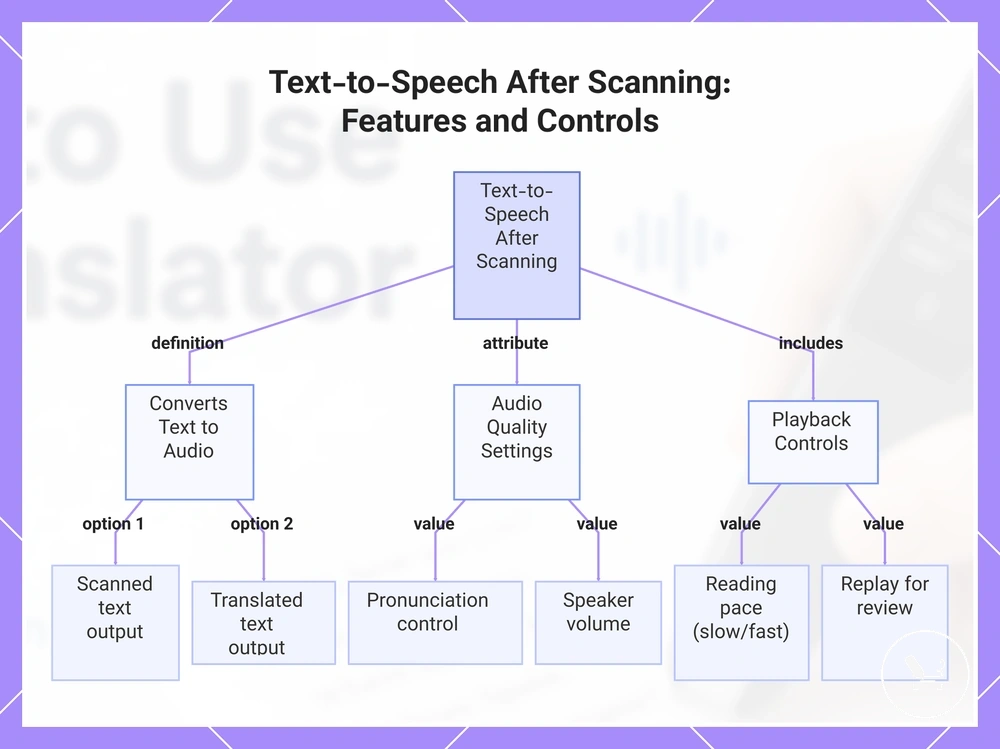
Text-to-speech after scanning converts scanned text and translated text into spoken audio so the content can be listened to directly after OCR capture, with pronunciation control and speaker volume settings adjusting how the output is heard :contentReference[oaicite:0]{index=0}. This function differs from voice translation, which processes live spoken input, while text-to-speech focuses on reading back already captured scanned results for review or listening.
After scanning, the system can read either scanned text or translated text depending on the selected output mode, with replay helping repeat the same content and reading pace influencing how fast the speech is delivered. When available, headphones or speaker output can be used depending on listening preference, while pronunciation control helps refine how words are spoken in different language outputs.
- Adjust pronunciation control to improve clarity of spoken output
- Use speaker volume to match listening environment conditions
- Replay text-to-speech output to review scanned or translated content
- Modify reading pace for slower or faster audio delivery
- Switch between scanned text and translated text for different listening outputs
This chart explains the core function of text-to-speech after scanning and the main audio and playback controls.
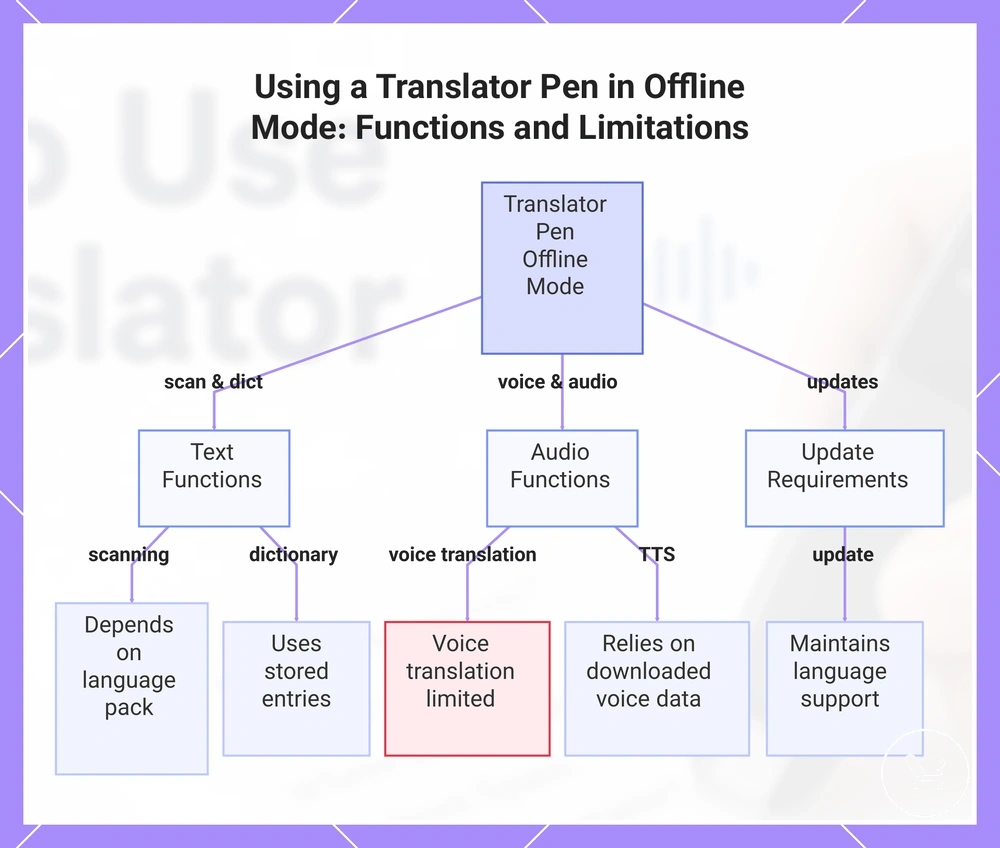
Using a Translator Pen in Offline Mode
Using a Translator Pen in Offline Mode depends on whether downloaded languages and a valid language pack are installed, since scanning, voice translation, text-to-speech, and dictionary mode rely on stored language data instead of Wi-Fi-based processing. Offline mode changes function availability based on what is saved locally, and update requirements may influence which language resources remain usable on the device.
In offline mode, scanning continues through OCR using installed language support, but translation output varies depending on the language pack. Voice translation may be limited compared to online behavior, while text-to-speech typically uses downloaded audio assets when available. Dictionary mode can remain more stable because it relies on stored entries rather than Wi-Fi connectivity.
Function behavior can be separated by criteria to clarify offline limits:
- Scanning: works via OCR but depends on installed language support in the language pack
- Voice translation: may be limited or simplified without Wi-Fi access
- Text-to-speech: relies on downloaded voice data when available offline
- Dictionary mode: operates using stored entries without Wi-Fi
- Update requirements: may be needed to maintain or expand offline language support
For setup context, see offline mode setup. This boundary helps ensure the correct language pack is prepared before relying on offline functions.
This chart explains how scanning, voice translation, text-to-speech, dictionary mode, and update requirements work when the translator pen is used offline.
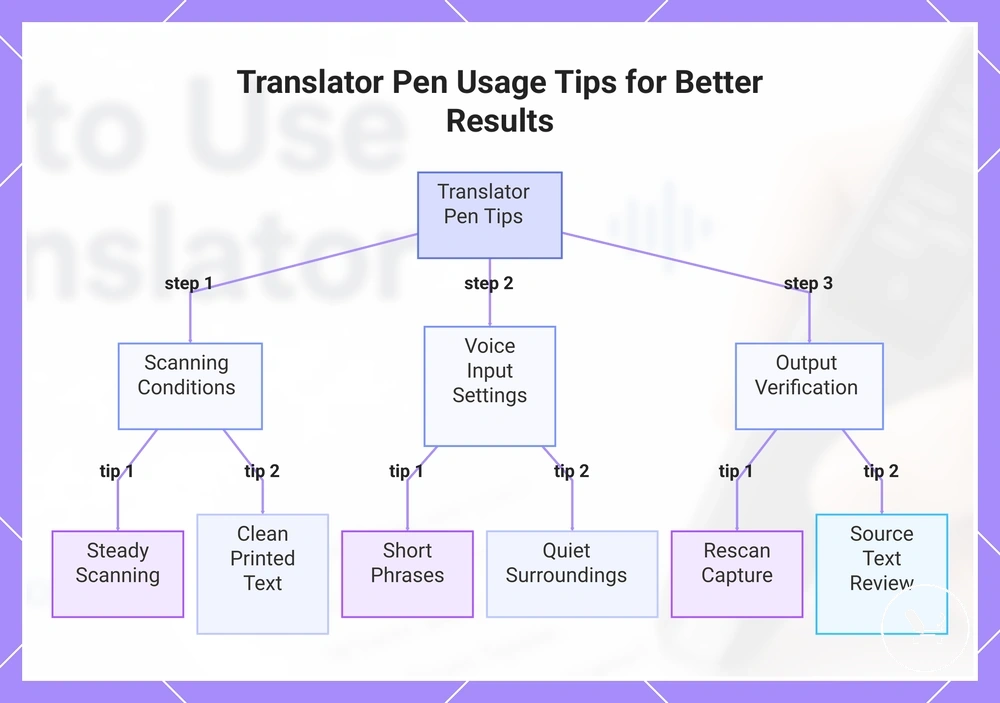
Translator Pen Usage Tips for Better Results
Translator Pen Usage Tips for Better Results improve consistency in scanning, voice input, and playback when conditions such as steady scanning, clean printed text, correct language direction, short phrases, quiet surroundings, and stable volume settings are applied during everyday use. These factors mainly affect how reliably recognition and output behave depending on input quality and environment.
In real usage, results improve when actions are treated as repeatable habits, especially when combining source text review and rescan behavior before relying on final output. Adjusting language direction correctly, using short phrases during voice input, and maintaining quiet surroundings can reduce interference, while checking volume helps ensure playback is clearly understood across different contexts.
- steady scanning: keep movement stable to reduce recognition errors during text capture
- clean printed text: improve scan reliability by avoiding smudges or low contrast text
- language direction: verify before scanning or speaking to prevent mismatch output
- short phrases: support clearer voice input recognition in variable environments
- quiet surroundings: reduce background noise during scanning and voice translation
- volume: adjust playback for clearer output verification
- rescan: repeat capture when recognition is incomplete or unclear
- source text review: check recognized text before relying on translation output
This chart organizes key translator pen usage tips into scanning conditions, voice input settings, and output verification steps to improve recognition and playback reliability.
Common Scanning and Voice Use Mistakes
Common scanning and voice use mistakes reduce translator pen accuracy when issues such as rushed scan, tilted placement, poor lighting, wrong language direction, missing offline packs, noisy input, low volume, and weak source recognition occur during everyday use. These conditions may come from user handling, environment, or device configuration, so correction often depends on identifying which factor is affecting scanning or voice output.
In many cases, performance issues are not caused by a single fault, but by a combination of input and setup conditions that affect source recognition and output clarity. A rushed scan or tilted placement can distort text capture, while poor lighting reduces visibility; wrong language direction or missing offline packs may affect translation availability, and noisy input or low volume can reduce voice accuracy or playback clarity.
| Mistake | Likely effect | Check | Correction |
|---|---|---|---|
| rushed scan | incomplete or skipped source recognition | scan speed consistency | slow down movement for stable capture |
| tilted placement | distorted text recognition | pen angle alignment | align pen parallel to text line |
| poor lighting | reduced scanning accuracy | text visibility | improve lighting conditions |
| wrong language direction | incorrect translation output | selected language settings | verify language direction before use |
| missing offline packs | limited offline functionality | installed language pack | ensure required packs are installed |
| noisy input | voice misrecognition | background noise level | reduce environmental noise |
| low volume | unclear playback | speaker level | increase volume for clarity |
| source recognition | incorrect or incomplete interpretation | recognized text accuracy | review and rescan when needed |
For related troubleshooting cases and deeper issues, see translator pen FAQ, which helps connect scanning or voice problems with broader device behavior without assuming a single cause.